
Qazelimorix Platform Tools: Review Functions and Interface Capabilities
An explanation of the tools and review functions available through Qazelimorix, organised by their purpose and described in terms of what users can do with them within the classification interface.
The tools within Qazelimorix are oriented around a single core task: helping users examine organised information clearly and efficiently. Each function corresponds to a specific aspect of the review process — navigating between classification levels, examining individual entries, comparing grouped items, or requesting clarification from the support team.
The tools are presented through the platform interface and are accessible to users who have completed the access process. They are designed to be straightforward to use without requiring prior technical knowledge of the underlying classification system.
How Users Move Through the System
Access and review follows a predictable sequence. Each stage is designed to prepare users for the next step without requiring backtracking.
Submit an Access Request
Users begin by submitting an enquiry through the Enquire page. The request includes a description of the user's need and the type of information they wish to review. The support team assesses the request and follows up by email.
Receive Access Confirmation
Once the request has been reviewed, the support team communicates the outcome by email. If access is provided, instructions for entering the platform are included. The team may ask for clarification before a decision is reached.
Navigate the Classification Structure
Authorised users enter the interface and navigate through the top-level classification categories. Each category shows the items assigned to it and any available sub-groupings. Navigation paths are clearly labelled at every level.
Examine Entries and Grouped Records
Within each section, users can open individual entries to review their full content, compare items within the same grouping, and note the classification metadata attached to each record.
Contact Support Where Needed
If a user encounters an entry they believe is incorrectly classified, or has a question about the information presented, they can raise the matter through the support channel. The team reviews and responds to all submitted queries.
Interface Capabilities in Detail
Classified Information View
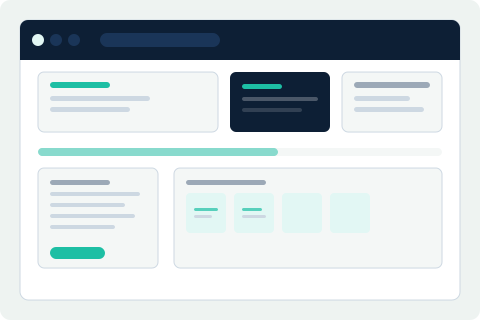
The primary tool within Qazelimorix is the classified information view. This is the main display layer where all organised records are presented. Users see information grouped by category, with each group clearly labelled and separated from adjacent sections. The view is consistent in its layout regardless of which category is being examined, so that users can develop a reliable reading pattern across the entire information structure.
Category Navigation Panel
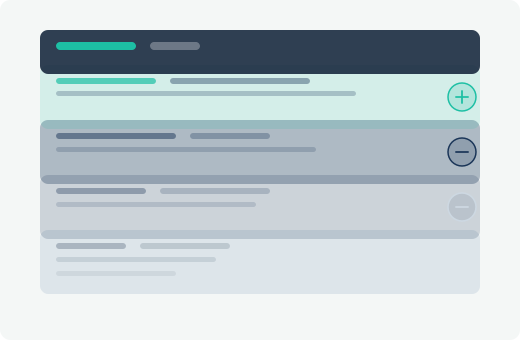
A persistent navigation panel lists available classification categories. Users can move directly to any category from this panel without retracing earlier steps. The panel also indicates the current location within the information structure, so users always know which section they are viewing.
Entry Timeline View
Within each category, records can be examined in chronological order based on when they were received and classified by the system. This timeline view is useful when users need to understand the sequence in which records were added to a particular classification group.
Grouping Comparison
Users can view items from two different sub-groupings side by side within the same section. This assists in identifying patterns or differences across related records without leaving the current classification level or opening separate navigation paths.
Classification Metadata Display
Each record in the system carries metadata that describes its classification state: the category it belongs to, the sub-grouping it has been assigned to, and the timestamp of its most recent classification event. This metadata is displayed alongside the record content within the entry detail view.
Filtered Section Display
Users can apply a filter to limit the entries displayed within a section to those matching a selected sub-classification. Filtered views do not alter the underlying record structure — they temporarily narrow what is shown on screen without affecting the classification data.
Support Request Integration
From within the interface, users can flag a specific entry for review by the support team. Flagged entries are submitted directly to the support queue along with the user's notes. This avoids the need to leave the interface and locate the Enquire page separately.
Ready to Review Available Information?
Submit an access request through the Enquire page. The support team will review your request and follow up by email.